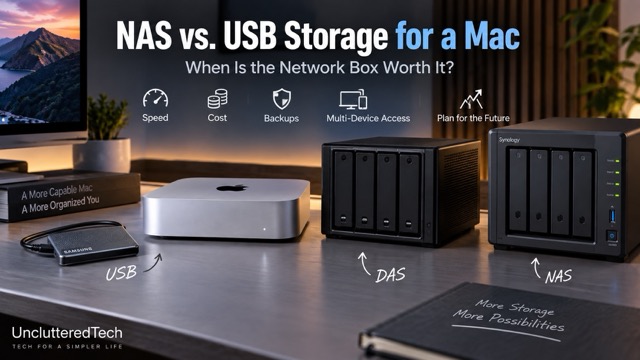
My M4 Mac mini has 16GB of RAM and a 256GB internal SSD.
In 2026, 256GB isn't much.
When I bought the Mac mini, though, I couldn't justify Apple's cost for additional internal storage. And judging by how popular the base-model Mac mini has been, I'm probably not the only person who made that decision.
The good news is that 256GB can be perfectly manageable.
For everyday documents, applications and a reasonable smartphone photo library, you can make it work.
Where things start falling apart is everything else.
I've worked in IT for about 25 years, so I keep operating-system ISOs and other technical files around for things like reimaging computers. Add several Windows and Linux installers and you've already consumed tens of gigabytes.
Then there are RAW photos, ripped Blu-rays, video footage and content-creation project files.
Suddenly, 256GB starts looking very small.
That's when the question changes from "Can I survive with 256GB?" to:
What's the best way to expand my Mac's storage?
Do you buy a simple USB drive? A multi-drive DAS? Or spend considerably more on a NAS?
I've used all three approaches over the years. There isn't one answer that's right for everyone, so instead of telling you exactly what to buy, let's look at how to decide.
You Have Less Room Than You Think
You shouldn't plan on filling your Mac's internal SSD completely.
macOS needs free space for temporary files, caches, swap space, updates and other background operations. SSDs also generally benefit from having some free capacity available rather than constantly operating near their limit.
So I don't treat a 256GB SSD as 256GB of space available for my files.
Personally, once I start getting down to roughly 80GB of free space, I start thinking about what I can move elsewhere rather than waiting until the drive is nearly full.
That's not a hard technical threshold. It's simply the point where I want to have an expansion plan rather than scrambling for space later.
For a typical user storing documents, applications and a moderate photo library, the base SSD might still last quite a while.
For IT work, photography or content creation, it's a very different story.
The Real Question: What Are Your Future Storage Needs?
Before buying anything, I'd ask one question:
How much storage am I realistically going to need over the next few years?
Some people can comfortably live with a 2TB or 4TB external drive for years.
A content creator producing large video files could burn through the same capacity much faster.
You don't necessarily need to buy five years' worth of storage today. Storage prices, interfaces and technology change too quickly for that to always make sense.
But you should understand your trajectory.
If you're currently using 300GB and adding 50GB per year, a 2TB drive gives you plenty of breathing room.
If you're adding hundreds of gigabytes every month, buying another small drive might simply delay the problem.
Ideally, think three to five years ahead and make sure whatever you're buying gives you a sensible upgrade path.
That doesn't mean ignoring your budget.
If you're running out of space today and can only afford a basic external drive, buy the external drive.
Running your system nearly out of storage while saving for the "perfect" NAS doesn't make much sense either.
What I Did — and Why Your Setup Should Probably Look Different
My own storage journey started with a single external drive.
If I remember correctly, it was around 500GB. That was somewhere around 10 to 15 years ago.
Eventually 500GB became 1TB.
Then 2TB.
Then more drives.
And eventually I ended up with substantially more complicated storage infrastructure.
But there's an important bit of context here.
I've worked in IT for about 25 years.
My storage requirements aren't necessarily the same as those of a teacher, carpenter, accountant or someone who primarily uses their Mac for everyday personal computing.
That's why I wouldn't recommend copying my setup—or anyone else's.
Use setups like mine as examples of what's possible, not shopping lists.
I've spent plenty of money on technology over the years that, with a little more thought beforehand, I probably didn't need to spend.
That's actually one of the reasons I started creating content.
I can show you the technology I've used, including the mistakes I've made, so you can hopefully make a better decision for your own situation.
And for many people, that decision should probably start with a simple external drive.
Start With the Simplest Solution
If you just need more storage for one Mac, don't automatically buy a NAS.
A USB SSD or hard drive may be all you need.
It's inexpensive compared with a NAS, simple to configure and potentially very fast.
Plug it into your Mac, format it and start using it.
For a lot of people, that's enough.
There's one important limitation, though:
Moving files onto an external drive doesn't automatically mean you have a backup.
If your Mac contains one copy and the external drive contains another, you have two copies.
If you move the only copy from your Mac onto the external drive, you still have only one copy.
If that drive dies, the file goes with it.
For replaceable files, maybe that's an acceptable risk.
For family photos, client files, important documents or years of creative work, it probably isn't.
That's where more sophisticated storage—and more importantly, a proper backup strategy—starts becoming useful.
USB Drive vs. DAS vs. NAS
There are really three levels of external storage worth considering.
A USB drive is the simplest. It's one drive connected directly to your Mac.
A DAS — Direct Attached Storage — usually gives you multiple drives in an enclosure connected directly to your computer, commonly over USB or Thunderbolt.
A NAS — Network Attached Storage — is effectively a small computer dedicated to storage and other services that connects to your network rather than directly to your Mac.
Each solves a slightly different problem.
When a USB Drive Makes Sense
I'd start here unless you already know why you need something more complicated.
A USB SSD is particularly attractive for Mac users because you can get excellent performance without changing anything about your network.
It's also portable.
If you have a MacBook and occasionally need extra storage, you can simply take the drive with you.
The biggest disadvantage is that it's attached to one machine at a time.
If all you need is another 1TB, 2TB or 4TB attached to your Mac, that's probably not a problem.
You don't need to turn a basic storage problem into a homelab project.
When a DAS Makes More Sense
A DAS is the next step up.
Instead of plugging one drive into your Mac, you're connecting an enclosure containing multiple drives.
That gives you substantially more potential capacity and, depending on how it's configured, options for drive redundancy.
A DAS has two major advantages: performance and simplicity.
Because it's connected directly to the computer, you're not depending on your network to transfer files.
With the right drives and connection—particularly something like Thunderbolt—a DAS can provide extremely high transfer speeds. That's particularly useful for workloads such as video editing where you're constantly reading and writing large files.
A DAS can also be less expensive and less complicated than a comparable NAS because it doesn't need to function as a standalone computer.
But the trade-off is accessibility.
If your DAS is sitting beside your Mac mini, that's where your storage lives.
That's perfectly fine for a desktop workstation.
It's less convenient if your primary computer is a MacBook and you regularly work from the couch, patio or somewhere else in the house.
When a NAS Makes Sense
A NAS solves a different problem.
Instead of asking:
How do I add storage to this computer?
You're asking:
How do I make my storage available to all of my devices?
That's the point where I think a NAS starts making sense.
A NAS connects to your network, which means your Mac mini, MacBook, phone, tablet and potentially other devices can access the same storage.
Depending on the NAS and how you configure it, you may also be able to securely access your files while you're away from home.
Modern NAS devices can also do considerably more than store files.
Depending on the hardware and software, they can potentially handle things like:
- automated backups
- media streaming
- photo libraries
- file synchronization
- Docker containers
- surveillance storage
- virtual machines
- private cloud services
That's why comparing a USB drive directly with a NAS isn't entirely fair.
A USB drive is storage.
A NAS is effectively another computer whose primary job happens to be storage.
Naturally, it costs more.
Mobility Might Be the Deciding Factor
This is something that's easy to overlook when comparing specifications.
Think about where you actually use your computer.
If you have a Mac mini sitting on a desk, having a USB drive or DAS permanently attached to it isn't particularly inconvenient.
If your main computer is a MacBook and you're constantly moving between your office, couch, kitchen and patio, tethering your storage to a desk changes the experience considerably.
You can carry a portable SSD around with you.
Or you can put your storage on the network and access it without thinking about which drive is plugged into which computer.
That's one of the strongest arguments for a NAS.
You're paying for convenience and accessibility, not just terabytes.
The Network Is the Catch
That convenience comes with a trade-off.
Your NAS performance is limited by your network.
A standard Gigabit Ethernet connection has a theoretical maximum of about 125MB/s before overhead.
Move to 2.5GbE and that theoretical ceiling rises to roughly 312MB/s.
10GbE pushes it considerably higher.
For backups, documents, media libraries and many creative workflows, even relatively modest network speeds can be perfectly adequate.
But achieving higher NAS speeds means the rest of your infrastructure has to support them too.
Your NAS might have 10GbE, but if your Mac, switch or cabling only supports Gigabit Ethernet, you're still operating at Gigabit speeds.
This is one of the hidden costs of moving to a NAS.
You aren't necessarily buying just the NAS.
You may eventually find yourself buying faster networking hardware as well.
A directly attached drive doesn't have that particular dependency.
RAID Is Not a Backup
This deserves its own section because I learned this one the expensive way.
RAID is not a backup.
RAID can provide redundancy.
Depending on the configuration, a drive can fail without immediately taking your data with it.
That's useful.
But redundancy and backup aren't the same thing.
If you accidentally delete a file, corrupt your data, lose the entire enclosure or suffer a failure affecting the whole system, having multiple drives in a RAID array doesn't necessarily save you.
I once relied too heavily on RAID and lost data because of it.
That changed how I approach storage.
Important data should exist in multiple places, and ideally at least one copy should be physically separate from your primary storage.
That could mean cloud storage, another device stored elsewhere, or another appropriate off-site backup.
A NAS with RAID can be part of your backup strategy.
It isn't the backup strategy by itself.
So Which One Should You Buy?
I think the easiest way to decide is to stop focusing exclusively on capacity.
Instead, ask what you need your storage to do?
If you have one Mac and simply need another couple of terabytes, start with a USB drive.
If you need a lot of fast storage connected primarily to one workstation, a DAS starts making more sense.
If you want centralized storage accessible from multiple computers and devices—or you want additional services such as backups, media hosting and remote access—that's when a NAS starts justifying its additional cost and complexity.
And don't buy a NAS simply because someone on YouTube has a rack full of servers and tells you that you need one.
You probably don't.
At least, not yet.
Start Simple and Expand When Your Needs Change
My storage setup today is substantially more complicated than the single external drive I started with.
But that doesn't mean I should have started with the setup I have now.
My requirements changed.
That's the part I think gets lost when we talk about storage.
The objective isn't to build the most impressive storage system you can afford.
It's to build the simplest system that reliably handles what you need today while giving you a reasonable path to grow tomorrow.
For some people, that's a basic external drive.
For others, it's a multi-drive DAS.
And for people who need centralized storage, multi-device access and additional services, a NAS can absolutely justify the investment.
The right answer depends less on how many terabytes you can buy and more on what you actually need those terabytes to do.